If you’ve written something to be published – for example a book or report, or pages for your website – the next step is to have it edited. Here are some tips on how to prepare a draft non-fiction text before sending it to a copy-editor. Following these basic tips will help speed up the editing process, and therefore save you money.
This guide includes:
- Good practice in preparing your text for copy-editing.
- Text formatting tips.
- Tips on preparing images, tables and elements set apart from the main text.
Why preparing your text well is a good idea
While following these tips is not essential, doing so will help make the content and structure of your text as clear as possible to the professionals working with you to get it ready for publication. If they need to spend time deciphering your heading levels or cleaning up unwanted formatting, for example, that’s going to slow things down (and so cost more).
What you can helpfully do to prepare your text depends on the stage your writing project has reached, but the best overall advice is to keep it simple. It’s understandable that you’re eager to see what the final publication will look like, but the first focus of editing is on the words and the structure. Any formatting you do at draft stage (for example with fonts, text boxes or effects) may just make it harder for your editor or designer to do their job.
Tip: Layout or formatting happens after editing in the publishing workflow. Don’t spend time trying to make your draft look like a finished publication. Your editor or designer may need to spend extra time removing or cleaning up what you’ve done.
How to prepare your text for copy-editing
- If you can, use Word to prepare your draft text document. That’s the industry-standard software for editors because of the tools and techniques we are able to use in that program. Using Word will also make it easier for you to review the changes and suggestions made by your editor.
- Don’t put anything in separate text boxes – your content should be in one continuous flow through the document.
- Have a clear way to show the structure of your text, such as heading levels, image placeholders, boxed text, exercises, case studies and other elements that should be set apart or treated differently from the main body text in the final layout. You could use paragraph styles to show this, or else use tags at the start and end of these structural elements.
Text formatting tips
It’s helpful if you keep formatting to a minimum, so that your editor can focus on the words and structure. Here are some ways you can do that.

- If you know how, use proper paragraph and character styles. For example, Body Text or Normal style for the main content, then Heading 1, Heading 2 and so on for the headings, and the character styles Emphasis and Strong for italic and bold words.
- If you’re not familiar with styles, keep formatting simple. Avoid using too many different fonts and text sizes – stick to one for body text and another one or two for headings.
- If you paste in text from elsewhere, especially from a web page or digital file, paste as plain text so that you don’t carry over unwanted formatting.
- Leave only one space between sentences, not two.
- Don’t add multiple line returns between paragraphs – adjust the space after setting in your body text paragraph style instead.
- Also don’t use the Enter/Return key multiple times to take your text over to the next page. Chances are it won’t end up in the same place on your editor’s computer anyway. Instead insert page breaks.
- Don’t use tabs or multiple spaces to indent or centre text. Use one tab if you need to, but ideally adjust the paragraph style settings or create a new one.
- If your text contains special characters such as the degree sign or plus and minus operators, insert the proper symbols for these.
- Use the superscript and subscript buttons if you need those instead of manually raising or lowering text.
Tables
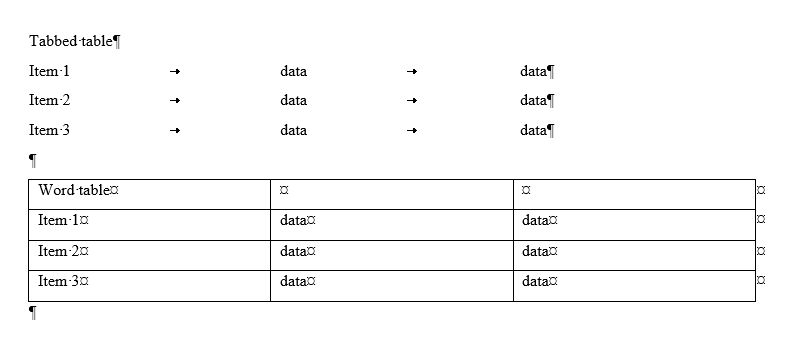
- Don’t artificially indent a block of text by using repeated spaces or tabs to make it appear like a table. Use the insert table tool in your word processor, or set up aligned tabs so that you just need to tab once to each ‘column’.
Images
- If your content contains images (including photographs, illustrations and charts), first make sure you have permission to use them. Unless you’ve created them yourself, you’ll need to check who owns the copyright and whether there is, or you can get, a licence to use them.
- You can insert images into your text file as temporary placeholders, but your editor may strip these out while editing to keep the file size down. Your formatter will usually want to use separate original images for the final layout.
- Check that your images are of good enough quality for your intended publication. If it’s going to be printed, you’ll need high-resolution versions. Images for digital or online use can be smaller, but they still need to be big enough to scale up well if readers zoom in. Supply them as big as you have and your formatter will scale them down to the right size.
- Gather copies of your images into a separate folder (with clear filenames like ‘Figure-1’) and send this to your editor along with the text file.
- Make sure you have editable originals, especially of charts and images containing text. Your editor may spot changes that are needed.
Publishing information
If you’re creating a standalone publication (not website content) you’ll need to have certain information ready before publishing, so do this well in advance. It’s worth passing this information to your copy-editor too, to catch any errors or inconsistencies with your main text. You may need some or all of the following.
- Who it will be published by – your own name, a publishing imprint name, your company or business name?
- Any particular restrictions you want (or don’t want) on its use to include in the copyright statement.
- An ISBN for each format (such as print, ebook, audiobook) if you will be selling it or want to distribute it publicly, such as through libraries.
- Details of anyone you need or want to credit, such as your cover designer.
- Photograph, image and quoted extract credits and permissions. The copyright holder may supply you with wording they want you to use.
- A main category, some keywords (search terms) and a short description.
If you’re not writing in Word
- If you’re preparing your text in a different app (such as Google Docs, Scrivener or Pages), please let your editor know so that together you can iron out any compatibility issues and agree a working method for receiving and reviewing the edits. You can still use another program to do the final layout and formatting of the publication if you wish after the editing stage is finished.
- If the text you want edited is not in a word-processing document – for example, it’s a PowerPoint presentation or online web pages – ask your editor what they need from you. The answer will depend on what tasks your editor will be doing. They may be able to work with the existing format, or they may ask you to supply the content as a Word file or a PDF.
If you’re not at copy-editing stage
Copy-editing happens after you’ve finished writing – you’ve dealt with the big-picture issues of getting the overall content and structure right (with or without developmental editing help) and you’re ready to focus on the detail. If your writing project is at a different stage, ask your editor what they need from you.
If you’re at the stage of hiring a developmental editor, you can follow the tips above to prepare a draft text that’s easy for your editor to work with.
If you’ve already had the copy-editing and layout or formatting done and are ready for a final proofread, your editor will usually want a PDF to be able to check what the actual publication looks like, but it will be helpful to also supply the text as a Word document – just make sure it’s the same version as the laid-out text.
Do you need help with editing?
Daisy Editorial can help get your text ready to publish. Get in touch for a free no-obligation quote for copy-editing, proofreading, formatting or design and layout. If you need other services, I’ll point you in the right direction.
This article is also available as a free PDF download.
© Daisy Editorial 2025. All rights reserved.